
Ampler Charts can refresh every Excel-linked chart on a slide, or across the whole deck, from one Links panel — so when the model changes, all of them update together instead of one at a time.
Quick answer: Open the three-dot More options menu and click Links (or Links in selected slides), then click the Update icon for the current slide or all slides; every linked chart refreshes from Excel.
How to use it
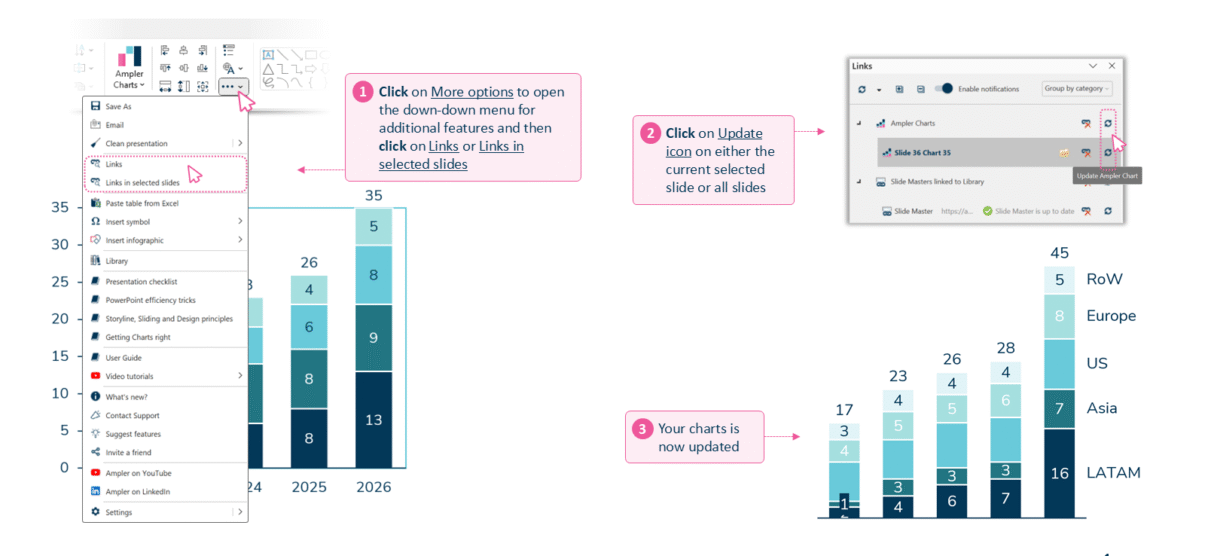
Open Links from the three-dot menu, then click Update to refresh the linked charts.
- Click More options (the three-dot menu) to open the drop-down for additional features, then click Links or Links in selected slides.
- Click the Update icon on either the current selected slide or all slides.
- The linked charts are refreshed with the latest data from Excel.
When to use it
Refresh from the Links panel whenever the model behind the deck has moved — a new actuals month, a re-forecast, a revised assumption — and especially right before a review or send-out, so nothing on the slides is showing yesterday’s numbers.
How consultants use it
A strategy deck often carries dozens of charts drawn from a single model, and keeping them all current is a data-integrity task, not a cosmetic one. A few practices apply:
- Refresh the whole set at once: one update sweeps every linked chart on a slide or across the deck, so a 20–50-chart pack is brought current in seconds rather than chart by chart
- Make it the last step before a review: re-linking just before a meeting or send-out is the guard against a slide quietly showing superseded numbers
- Keep one source of truth: the model stays the master and the charts read from it, so different team members’ edits converge instead of drifting apart
Updating from the Links panel keeps a whole deck consistent with the one model behind it.
Tips & best practices
- Use Links in selected slides to refresh only the slides you’re working on.
- Enable notifications in the Links panel to see at a glance which charts are out of date.
- Make a full refresh the final step before exporting or presenting, so no chart shows stale figures.
Availability
Part of Ampler Charts, included in Ampler for PowerPoint and the Ampler Suite, on Windows desktop PowerPoint.
Frequently asked questions
How do you update all linked charts at once in Ampler Charts?
Open the three-dot More options menu, click Links, then click the Update icon to refresh the current slide or every slide in the deck.
Can you refresh linked charts on just one slide?
Yes. Choose Links in selected slides and update from there to refresh only those slides.
Do Excel-linked charts update automatically?
No — they refresh on demand from the Links panel, which keeps you in control of exactly when the figures on the slides change.
How do you know which linked charts are out of date?
Enable notifications in the Links panel to see the status of each linked chart and its source before you refresh.