
Ampler Charts can paste a single Excel cell into PowerPoint as live linked text — a figure or a phrase — so a headline number in the narrative updates with the model instead of being typed by hand.
Quick answer: In Excel, copy the text or value (Ctrl+C); in PowerPoint, open the three-dot menu and select Paste table from Excel to insert it as linked text. Click Refresh from source to update — linked text does not update on its own.
How to use it
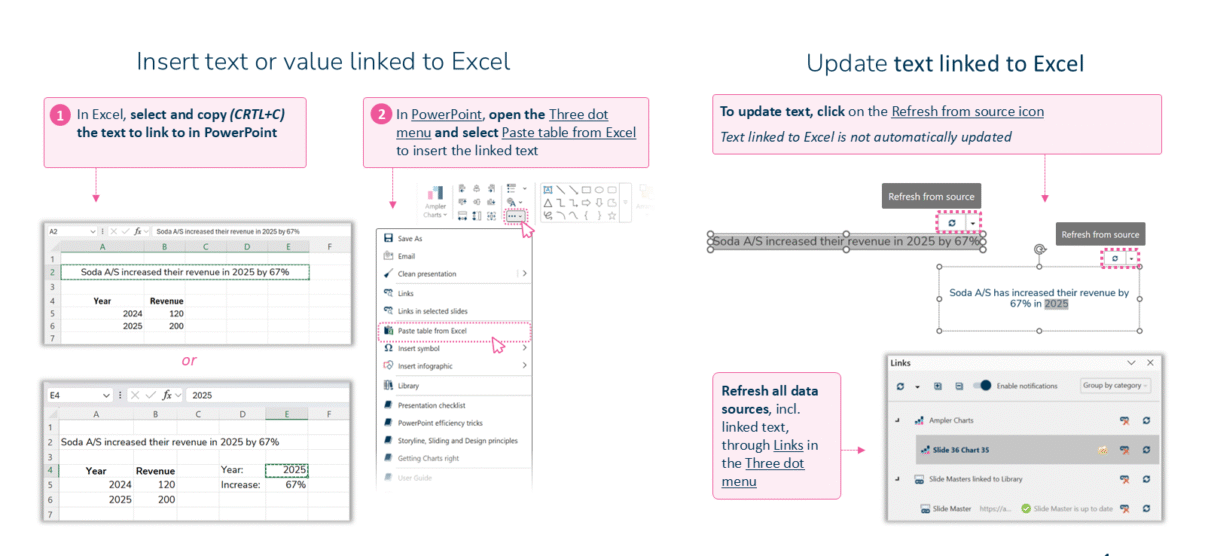
Copy a cell in Excel, then paste it as linked text in PowerPoint.
- In Excel, select and copy (Ctrl+C) the text or value you want to link to in PowerPoint.
- In PowerPoint, open the three-dot menu and select Paste table from Excel to insert the linked text.
- To update the text later, click the Refresh from source icon — text linked to Excel is not updated automatically.
Refresh all data sources at once, including linked text, through Links in the three-dot menu.
When to use it
Link text when a number in the story has to match the model exactly — a growth rate in an action title, a total in a callout — so the words on the slide can’t drift away from the chart beneath them.
How consultants use it
In an MBB-style deck the action title carries the ‘so-what’, and a figure inside it has to be exactly right. A few practices apply:
- Tie the headline to the data: a linked figure in the action title moves with the model, so the slide’s stated takeaway always matches the numbers proving it
- Pass the ‘so-what’ test: the takeaway and the chart become two views of one linked source, so pointing at the title and asking ‘so what?’ never exposes a mismatch
- Refresh the words with the charts: linked text updates in the same pass as the charts and tables, so a re-forecast doesn’t leave a stale number stranded in a sentence
Linked text keeps the figures in a slide’s message as current and correct as the chart that supports it.
Tips & best practices
- Linked text doesn’t refresh on its own — click Refresh from source to update it.
- Link the key figure in an action title so the message can never contradict the chart below it.
- Use Links in the three-dot menu to refresh text, tables, and charts together in one pass.
Availability
Part of Ampler Charts, included in Ampler for PowerPoint and the Ampler Suite, on Windows desktop PowerPoint.
Frequently asked questions
How do you insert linked text from Excel in Ampler Charts?
Copy the text or value in Excel (Ctrl+C), then in PowerPoint open the three-dot menu and select Paste table from Excel to insert it as linked text.
Does linked text update automatically?
No. Click Refresh from source on the text, or refresh from the Links menu, to update it.
Can you link a single number into a title or sentence?
Yes. Copy the cell in Excel and paste it as linked text, so a headline figure in an action title stays in step with the model.
How is linked text different from a linked table?
Linked text carries one cell’s value or phrase; a linked table carries a whole range. Both refresh the same way from the Links panel.