On some monitors, the Ampler toolbar may appear compressed or “squeezed”, as shown in the screenshot below.

To resolve this issue, adjust the display scaling for the affected monitor:
- Open the Windows Start menu and search for Display Settings
- At the top of the Display Settings window, select the monitor on which the Ampler toolbar appears compressed.
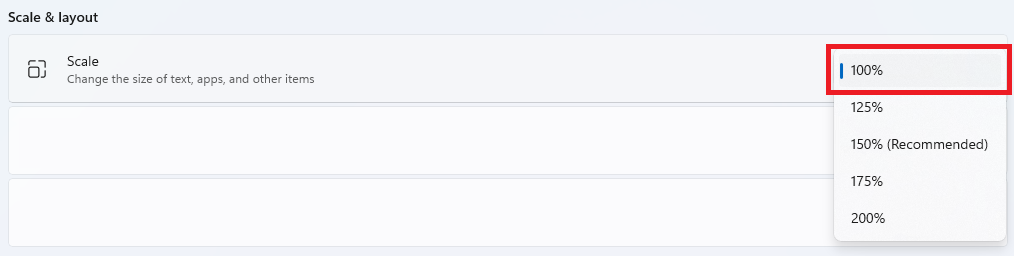
- Scroll down to the Scale setting.
- Change the scale to 100%, as shown in the screenshot below.
The Ampler toolbar should display correctly after the scaling setting has been changed.