
Software Requirements
Ampler requires the following software components to be installed:
- Microsoft .NET Framework 4.5 or newer (download link)
- Microsoft Office 2007-2024 or Office 365
Deployment
Download the latest version of the Ampler installer:
The Ampler installer is a standard Windows Installer. You may use your preferred deployment tool, e.g. Intune or SCCM to deploy Ampler.
The command to install Ampler depends on which products you want to enable. Make sure that you only enable products that you have a valid license for. If you enable a product that you don’t have a license for, Ampler will start a free trial for that product.
To install Ampler for PowerPoint use the following command:
| AmplerInstaller.msi /qn ALLUSERS=1 ADDLOCAL=Core,PowerPoint |
To install Ampler for PowerPoint and Excel use the following command:
| AmplerInstaller.msi /qn ALLUSERS=1 ADDLOCAL=Core,PowerPoint,Excel |
To install Ampler for PowerPoint, Excel and Word use the following command:
| AmplerInstaller.msi /qn ALLUSERS=1 ADDLOCAL=Core,PowerPoint,Excel,Word |
To install Ampler for PowerPoint, Excel, Word and Outlook use the following command:
| AmplerInstaller.msi /qn ALLUSERS=1 ADDLOCAL=Core,PowerPoint,Excel,Word,Outlook |
The parameters used in the above commands are:
- /qn instructs the MSI to execute silently.
- ALLUSERS=1 performs a per-machine installation. If this parameter is omitted, the installer will perform a per-user installation, i.e. Ampler will only be available to the user executing the command. Per-machine installations are recommended for company deployments.
- ADDLOCAL=Core,PowerPoint,Word,Excel,Outlook specifies that the Core feature as well as the PowerPoint, Word, Excel and Outlook features should be installed. If this parameter is omitted, only the Core and PowerPoint features are installed.
To pre-activate Ampler for users, please download your license file from
your account. The license file contains the license itself and all of your company customizations.
The license file must be placed at this location:
- For 32-bit Windows: %programfiles%\Ampler\Ampler.license
- For 64-bit Windows: %programfiles(x86)%\Ampler\Ampler.license
If you have a network share that stores installation resources for your rollouts, you can distribute the license file using a command like the following:
| copy /Y /V "\\my-network-share\Ampler\Ampler.license" "%programfiles(x86)%\Ampler\Ampler.license" |
A note on certain deployment tools
SCCM
For SCCM it is recommended to create a custom detection rule such that it will correctly detect whether Ampler is already installed. This will prevent SCCM from trying to install Ampler when it is already installed.
It is recommended that you create a rule that checks the presence of this registry key:
- For 32-bit Windows: HKEY_LOCAL_MACHINE\SOFTWARE\Ampler
- For 64-bit Windows: HKEY_LOCAL_MACHINE\SOFTWARE\Wow6432Node\Ampler
It is not recommended to use the ProductCode to detect if Ampler is already installed. The reason is that the ProductCode is version specific, thus if Ampler auto-updates itself, then it will get a new ProductCode, and SCCM will then try to re-install Ampler, which will produce an error.
Furthermore, the ‘Install behavior’ should be set to ‘Install for system’.
Intune
For Microsoft Intune, the important part of the package setup is these three settings:
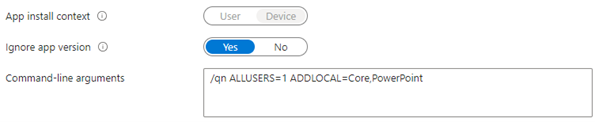
- ‘App install context’ should always be ‘Device’
- ‘Ignore app version’ should be set to the following:
- If Ampler’s auto-update mechanism is enabled then set to ‘Yes’
- If Ampler’s auto-update mechanism is disabled then set to ‘No’
- ‘Command-line arguments’ should be set according to the description above, depending on which Office products you wish to activate Ampler in. Please leave out the name of the .exe/.msi.
Modify Ampler after deployment
If you wish to enable Ampler for another Office program after having deployed Ampler in your organization, you may use the command below. The command assumes that Ampler is already installed on the computer on which it is being run. The command is useful if you have already deployed Ampler and then later expand your Ampler license to cover an additional Office program.
For example to enable Ampler for Word, use the following command in your deployment tool (if you use PowerShell, then prepend the command with the ampersand symbol and a space: '& ')
| "C:\Program Files (x86)\Ampler\Smart.Jobs.exe" -OfficeIntegration -Product=Word -Enable=True |
To disable Ampler for Word you can use the following command in your deployment tool:
| "C:\Program Files (x86)\Ampler\Smart.Jobs.exe" -OfficeIntegration -Product=Word -Enable=False |
In the commands above you can replace Word with any of the following values PowerPoint, Excel, or Outlook.
Uninstallation
Upon normal uninstallation, Ampler will remove the installation directory and all registry keys. User settings files will, however, be kept. If you wish to uninstall and remove user settings files simultaneously, then please use the PowerShell script below.
UninstallAmpler.ps1 Full
| Param ( [Parameter(Mandatory=$false, HelpMessage="Specify an uninstall mode. Valid values are 'Full'.")] [ValidateNotNullOrEmpty()] [ValidateSet('Full')] [string]$Mode )
$ErrorActionPreference = "Stop"
function Uninstall() {
$uninstall32 = gci "HKLM:\SOFTWARE\Wow6432Node\Microsoft\Windows\CurrentVersion\Uninstall" | foreach { gp $_.PSPath } | ? { $_ -match "Ampler" } | select UninstallString $uninstall64 = gci "HKLM:\SOFTWARE\Microsoft\Windows\CurrentVersion\Uninstall" | foreach { gp $_.PSPath } | ? { $_ -match "Ampler" } | select UninstallString
$uninstall = ( &{ if ($uninstall32) { $uninstall32 } else { $uninstall64 } } )
$uninstall = $uninstall.UninstallString -Replace "msiexec.exe", "" -Replace "/I", "" -Replace "/X", "" $uninstall = $uninstall.Trim()
Start-Process "msiexec.exe" -arg "/X $uninstall /qn" -Wait
}
function Remove-Tree($path) { Remove-Item $path -Force -Recurse -ErrorAction SilentlyContinue
if (Test-Path "$path\" -ErrorAction SilentlyContinue) { $folders = Get-ChildItem -Path $path -Directory -Force foreach ($folder in $folders) { Remove-Tree $folder.FullName }
$files = Get-ChildItem -Path $path -File -Force
foreach ($file in $files) { Remove-Item $file.FullName -Force -ErrorAction SilentlyContinue }
if (Test-Path "$path\" -ErrorAction SilentlyContinue) { Remove-Item $path -Force -Recurse -ErrorAction SilentlyContinue } } }
function Delete-Configuration() {
Remove-Tree "$env:APPDATA\Ampler" Remove-Tree "$env:LOCALAPPDATA\Ampler" Remove-Tree "$env:LOCALAPPDATA\Programs\Ampler" $programFiles = (${env:ProgramFiles(x86)}, ${env:ProgramFiles} -ne $null)[0] Remove-Tree "$programFiles\Ampler" }
Uninstall
if ($Mode -eq "Full") {
Delete-Configuration
} |