
Move to appendix moves the slides you select to the back of the deck, under a section named Appendix. The main storyline stays short, and the supporting detail stays in the file, ready for questions.
Quick answer: Select the slides in the thumbnail pane, click ⋯ in the Resources group of the Ampler ribbon, then Presentation > Move to appendix. Ampler moves them to the end of the deck under a new Appendix section.
How to use it
Move slides to the appendix
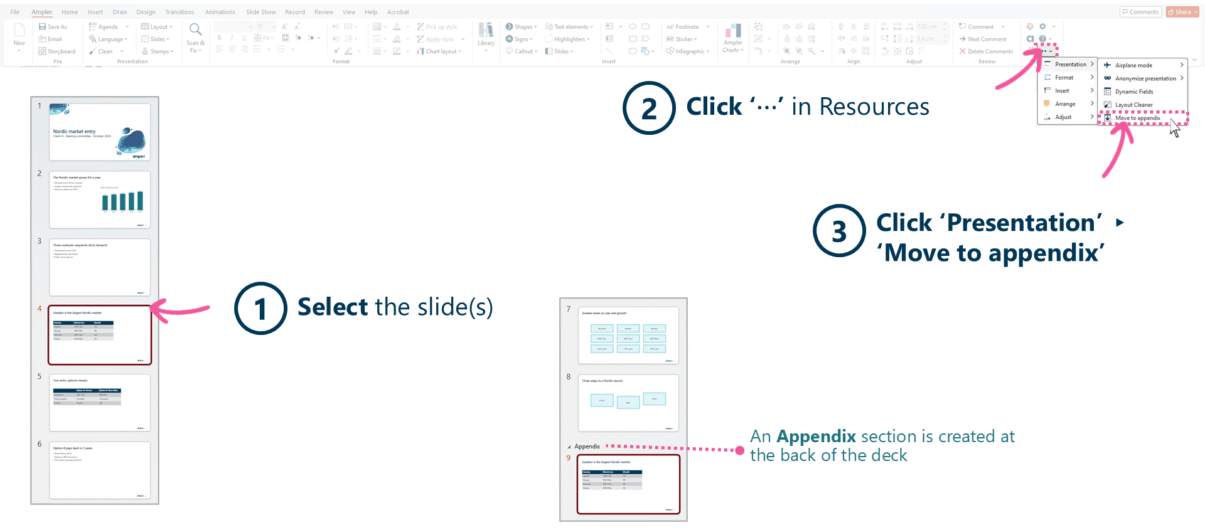
Select the slides, then choose Presentation > Move to appendix in the Ampler overflow menu.
- In the thumbnail pane, select the slide or slides to move. Hold Ctrl to select several.
- Click ⋯ at the bottom right of the Resources group on the Ampler ribbon.
- Click Presentation, then Move to appendix.
The slides move to the end of the deck, under a section named Appendix. In a deck without sections, the remaining slides are placed in a section named Default Section. The submenus in the ⋯ menu open when you click them, not when you hover.
Keyboard shortcut
Move to appendix has no default shortcut. To add one, open the Settings dropdown on the Ampler ribbon, choose Shortcuts, find Move to appendix and assign a key combination.
Why use it
A deck that carries every analysis in its main flow buries the answer. Moving supporting slides to an appendix keeps the main storyline to what the audience needs in order to decide, while the detail stays in the file. Done by hand, that means creating a section and dragging slides to the end of the deck. Move to appendix does both in one click and names the section the same way every time.
How consultants use it
Consulting decks are written answer first. The Pyramid Principle, developed at McKinsey and used across BCG and Bain, puts the recommendation up front and the evidence behind it. The appendix is where that evidence lives when it does not need to be on the main stage. Three habits follow:
- Answer first, evidence after: The main deck carries the storyline and the recommendation. Analyses that support the answer without moving the argument forward go to the appendix.
- One point per page: Every slide in the main flow has to say something the story needs. A slide that does not is moved to the appendix rather than deleted, so the work is not lost.
- Backup ready for questions: Detailed numbers, methodology and sensitivities sit in the appendix, so the team can answer a steering committee’s questions on the spot instead of promising a follow-up.
Move to appendix makes that triage a one-click step, so the main deck can be tightened right up to the meeting without losing any of the backup.
Tips & best practices
- Read the action titles in order before you decide what moves. A slide whose title does not advance the story is a candidate for the appendix.
- Keep appendix slides fully formatted, with action titles and sources. They are often read after the meeting and forwarded.
- Refer to backup slides from the main deck (for example “see appendix” in a footnote), so readers know the detail exists.
- To send only the main storyline, select those slides and use Save As or Email for selected slides.
Availability
Included in Ampler for PowerPoint and the Ampler Suite, on Windows desktop PowerPoint.
Frequently asked questions
What is an appendix in a PowerPoint presentation?
An appendix is a set of slides at the back of a deck that holds supporting material, such as detailed data, methodology and backup analyses, so the main presentation can stay focused on the storyline.
How do you move slides to an appendix in PowerPoint?
With Ampler, select the slides in the thumbnail pane, click ⋯ in the Resources group of the Ampler ribbon, then Presentation > Move to appendix. The slides move to the end of the deck under a section named Appendix.
When should a slide go in the appendix instead of the main deck?
When it supports the answer without moving the argument forward. Keep in the main deck the slides the audience needs to follow the storyline and make the decision, and move detailed evidence, methodology and alternative cuts of the data to the appendix.
Is there a keyboard shortcut for Move to appendix?
There is no default shortcut, but you can assign one: open Settings on the Ampler ribbon, choose Shortcuts and find Move to appendix.
Why can I not find Move to appendix on the Ampler ribbon?
It sits in the overflow menu: click ⋯ at the bottom right of the Resources group, then Presentation. If your company has customised the Ampler toolbar, it may also have been placed elsewhere.