
Create executive summary builds a summary slide from the titles of your slides. Write each slide’s message as an action title, and Ampler turns the storyline into a one-page summary that you can then edit.
Quick answer: Click Storyboard (Ctrl+Shift+E) on the Ampler ribbon, then Create executive summary at the bottom left. Ampler inserts a slide titled Executive Summary as slide 2, with one bullet for each slide title.
How to use it
Create the executive summary
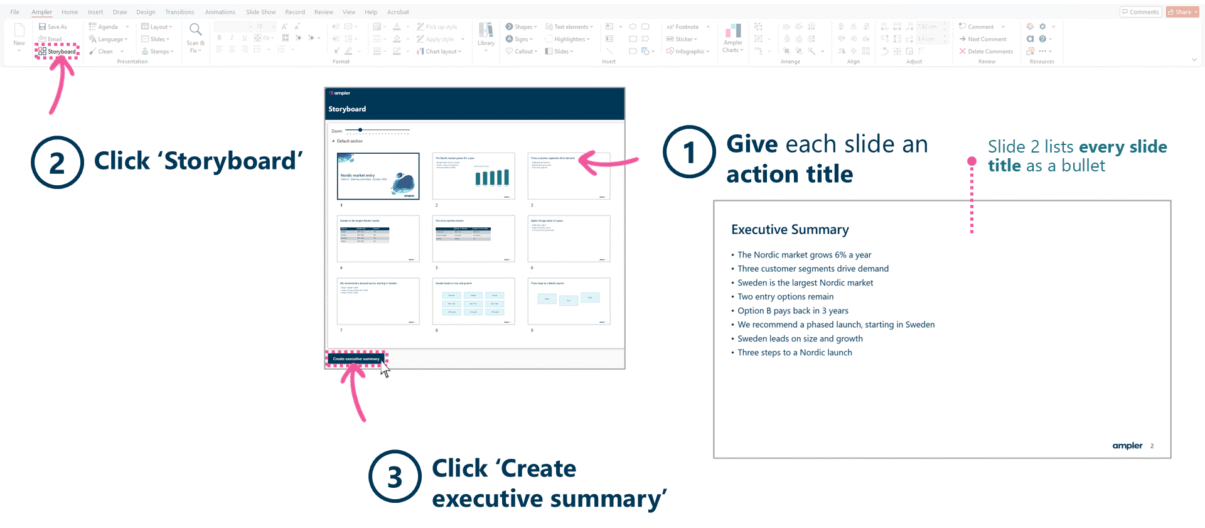
Create executive summary in Storyboard turns the slide titles into a summary slide.
- Give each content slide an action title: a full sentence that states the slide’s message.
- Click Storyboard on the Ampler ribbon (Ctrl+Shift+E).
- Click Create executive summary at the bottom left of the Storyboard window.
The new slide is inserted as slide 2, with one bullet for each slide title; the title slide is not included. The summary is a copy: if you change slide titles later, edit the bullets or create a new summary. Creating it again adds another Executive Summary slide rather than updating the first, so delete the old one.
Keyboard shortcut
Open Storyboard with Ctrl+Shift+E; Create executive summary is the button at the bottom left of the Storyboard window. To change the Storyboard shortcut, open the Settings dropdown on the Ampler ribbon, choose Shortcuts and reassign the Storyboard function.
Why use it
An executive summary is the slide most readers see first and many read only. Writing it by hand means retyping the slide titles, and the summary drifts from the deck as titles are edited. Building it from the titles makes the summary say exactly what the slides say, and shows at once whether the titles add up to a coherent argument.
How consultants use it
In consulting decks the executive summary is the storyline on one page. It follows the Pyramid Principle: lead with the answer, then the supporting messages, each stated as an action title. Three habits follow:
- Horizontal logic: Read in sequence, the action titles should tell the complete story. A reader who sees only the titles should still get the argument, and the executive summary is that sequence on a single page.
- Summary first: The executive summary is the first content slide, so a senior reader who stops after one page still has the answer and the reasons behind it.
- A test of the storyline: If the summary does not read as a coherent argument, the problem is in the titles, not in the summary. Teams fix the titles and generate it again.
Create executive summary turns that discipline into one click: the titles you have written become the summary, ready to tighten.
Tips & best practices
- Write full-sentence action titles of no more than two lines before you create the summary; topic labels such as “Market overview” make a weak summary.
- Settle the slide order in Storyboard before you create the summary.
- Edit the generated bullets into three to five key messages, with the supporting points beneath them, so the summary reads as a pyramid rather than a list.
- Move slides that do not carry the main story to the appendix first, so the summary covers only the storyline.
Availability
Included in Ampler for PowerPoint and the Ampler Suite, on Windows desktop PowerPoint.
Frequently asked questions
What is an executive summary slide?
An executive summary slide is the first content slide of a deck. It states the main answer and the key supporting messages on one page, so a reader can understand the whole argument without reading every slide.
How do you create an executive summary in PowerPoint?
With Ampler, open Storyboard (Ctrl+Shift+E) and click Create executive summary. Ampler inserts a slide titled Executive Summary as slide 2, with one bullet for each slide title, which you can then edit.
Does the executive summary update when I change my slide titles?
No. The summary is a copy of the titles at the moment you create it. Edit the bullets, or delete the slide and create the summary again.
Why do I get the message ‘Could not create executive summary’?
Ampler found no slides with titles to summarise. Add action titles to your content slides and try again.
What makes a good action title for an executive summary?
A full sentence that states the slide’s conclusion, not its topic, in no more than two lines. For example, “The Nordic market grows 6% a year” rather than “Market overview”.