
Ampler’s Library search finds saved slides and content by keyword, and supports operators to narrow the results — so you can reuse approved material instead of rebuilding it.
Quick answer: Open the Library, type keywords into the search field to find matching content, and use search operators to combine or exclude terms for a more precise result.
How to use it
Search Library content with keywords

Type keywords to find matching saved slides and content.
- Open the Library on the Ampler ribbon.
- Type keywords into the search field to find matching slides and content.
The Library searches saved content by keyword, so approved slides can be found and reused rather than rebuilt.
Use operators to refine a search
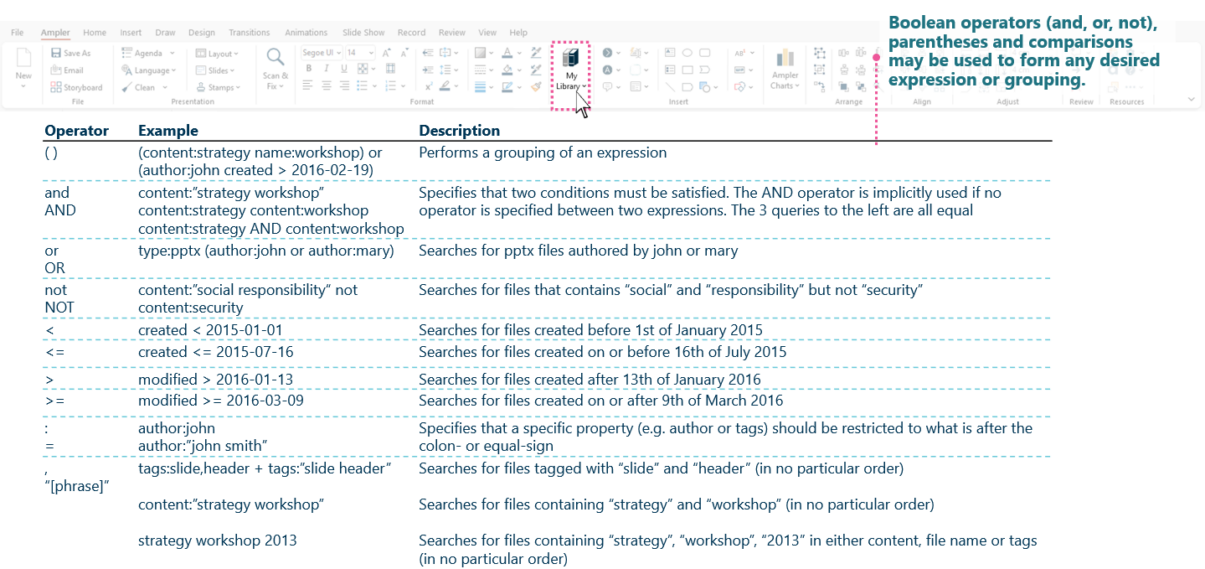
Combine or exclude terms with operators to narrow the results.
- Add operators to your search to combine or exclude terms.
- Refine until the results show the specific content you need.
Operators narrow a broad keyword search down to the exact slide or asset.
Keyboard shortcut
Library search has no default shortcut. To assign one to opening the Library, open the Settings dropdown on the Ampler ribbon, choose Shortcuts, click Set shortcut on the function, and press your key combination.
Why use it
A content library only pays off if the right slide can be found quickly. A plain keyword search returns too much; being able to combine and exclude terms narrows it to the specific asset. That turns the Library from a store into a genuine reuse tool — find the approved version and drop it in, rather than rebuilding from memory.
How consultants use it
Reuse of vetted material is central to how consulting firms work: McKinsey, BCG, and Bain all maintain curated internal libraries of approved slides, frameworks, and data so teams build on prior work instead of starting from scratch. Finding the right asset fast is the whole point. Three habits apply:
- Reuse before rebuild: the first move is to search for an existing, approved version of a slide or exhibit rather than recreate it.
- Search precisely: keywords plus operators cut a large library down to the exact asset, so reuse is faster than rebuilding.
- Standardise on approved content: drawing from a shared library keeps everyone on vetted, on-brand material.
Advanced search is what makes a large Library usable under deadline.
Tips & best practices
- Start broad, then add operators to narrow — faster than scrolling a long result list.
- Use consistent keywords when saving content so it’s easy to find later.
- Reuse the approved Library version rather than an old copy from a past deck.
Availability
Included in Ampler for PowerPoint and the Ampler Suite, on Windows desktop PowerPoint.
Frequently asked questions
How do you search the Ampler Library in PowerPoint?
Open the Library on the Ampler ribbon and type keywords into the search field. Ampler returns matching saved slides and content, which you can insert directly.
How do you narrow a Library search in Ampler?
Use search operators to combine or exclude terms. That refines a broad keyword search down to the specific slide or asset you need.
Why use a content library in PowerPoint?
To reuse approved, on-brand slides and exhibits instead of rebuilding them. Advanced search makes a large library usable by finding the right asset quickly.
Is there a shortcut for the Ampler Library?
There is no default shortcut, but you can assign one to opening the Library in the Ampler Settings → Shortcuts.