
Ampler’s Split textbox and Merge textbox break one text box into separate boxes per paragraph, or combine several boxes back into one — so you can restructure slide content without retyping it.
Quick answer: Select the text box and click Split textbox on the Ampler ribbon to break each paragraph into its own box; select several boxes and click Merge textbox to combine them into one.
How to use it
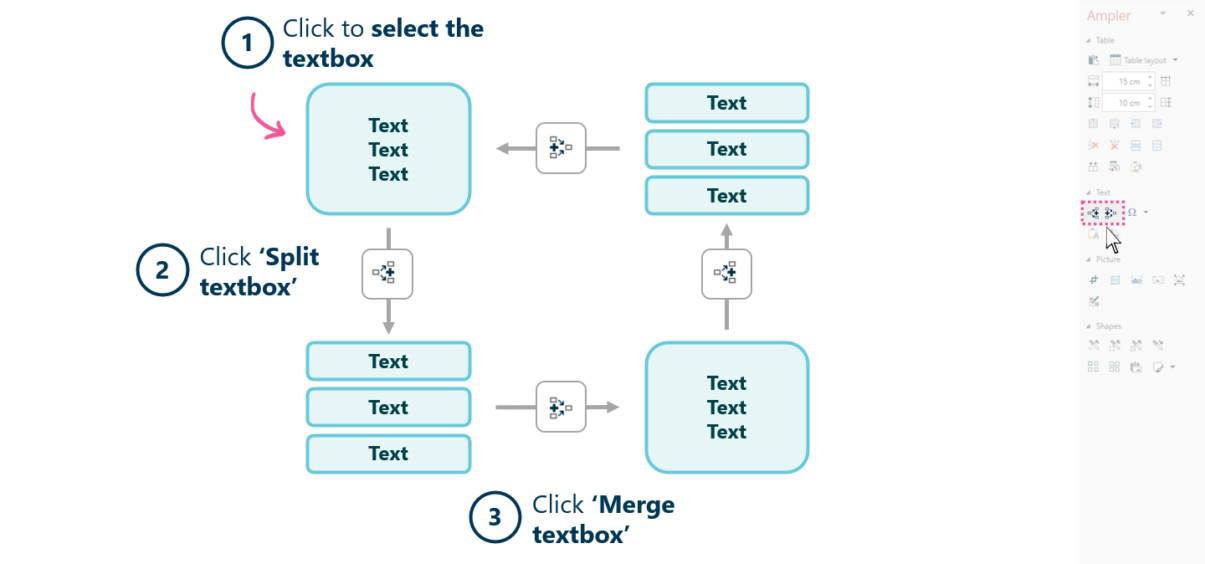
Split one box into paragraphs, or merge several boxes into one.
- Click to select the text box.
- Click Split textbox to break each paragraph into its own box, or select multiple boxes and click Merge textbox to combine them.
Splitting is useful when a block needs to become separately-positioned elements; merging reunites scattered boxes into a single, uniformly-formatted block.
Keyboard shortcut
Split and Merge have no default shortcuts. To assign one, open the Settings dropdown on the Ampler ribbon, choose Shortcuts, click Set shortcut on the function, and press your key combination.
Why use it
Reworking a slide often means turning one text block into several independently-placed elements — or the reverse, pulling scattered boxes back together. Doing that by hand means cutting, pasting, and re-aligning, which is slow and tends to leave formatting inconsistent. Split and Merge restructure the text boxes directly, so the content moves without being retyped and the formatting stays intact.
How consultants use it
Consulting slides are rebuilt constantly as the storyline shifts, and text rarely stays where it first landed. Being able to recompose text boxes cleanly keeps that iteration fast. Three habits apply:
- Content as modular blocks: each idea sits in its own box so it can be moved, aligned, or restacked as the argument on the slide changes.
- Restructure without retyping: splitting and merging preserves the wording and styling, so reorganising a slide never means rekeying it.
- Alignment survives the edit: starting from clean, single-purpose boxes makes it far easier to keep everything on the slide’s grid.
Split and Merge make that recomposition a two-click operation rather than a manual cut-and-paste.
Tips & best practices
- Split a dense block before distributing its parts to different positions on the slide.
- Merge scattered boxes to enforce a single, consistent text style across them.
- Follow a restructure with Scan & Fix to catch any alignment drift.
Availability
Included in Ampler for PowerPoint and the Ampler Suite, on Windows desktop PowerPoint.
Frequently asked questions
How do you split a text box into separate boxes in PowerPoint?
Select the text box and click Split textbox on the Ampler ribbon. Each paragraph becomes its own text box, keeping its wording and formatting.
How do you merge multiple text boxes into one in PowerPoint?
Select the boxes and click Merge textbox on the Ampler ribbon. Ampler combines them into a single text box.
Can you restructure slide text without retyping it?
Yes. Ampler’s Split and Merge recompose text boxes directly, so content can be broken apart or combined without cutting, pasting, or rekeying.
Is there a shortcut for splitting or merging text boxes?
There is no default shortcut, but you can assign one in the Ampler Settings → Shortcuts.