
Ampler inserts symbols — such as ™, ®, or footnote marks — straight into a text box at the cursor, without hunting through the full symbol dialog.
Quick answer: Place the cursor in a text box, click Insert Symbol on the Ampler ribbon, and select the symbol; use Manage symbols to add more to the list.
How to use it
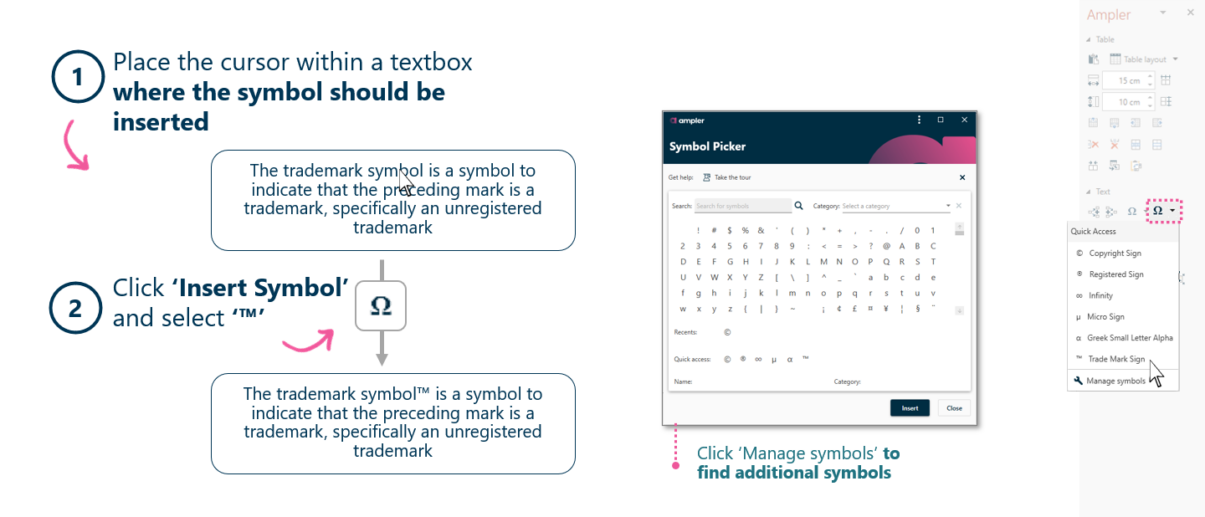
Place the cursor, then insert a symbol like the trademark mark.
- Place the cursor within a text box where the symbol should go.
- Click Insert Symbol and select the symbol (for example ™).
Click Manage symbols to find and add additional symbols to your quick list.
Keyboard shortcut
Insert Symbol has no default shortcut. To assign one, open the Settings dropdown on the Ampler ribbon, choose Shortcuts, click Set shortcut on the function, and press your key combination.
Why use it
The symbols you use often — trademark, registered, degree, footnote marks — are buried in PowerPoint’s symbol dialog. Ampler keeps your common symbols one click from the cursor, and lets you curate the list, so notation is quick and correct.
How consultants use it
Correct notation matters on a professional slide: a trademark or registered mark on a brand name, the right footnote symbol on a sourced figure. Keeping those symbols to hand keeps the detail right. Three habits apply:
- Correct marks on names: ™ and ® are applied where they belong.
- Consistent footnote symbols: the same reference marks are used throughout.
- A curated symbol set: the symbols the team uses most are one click away.
Quick symbol insertion keeps notation precise without breaking flow.
Tips & best practices
- Curate your quick list with Manage symbols for the marks you use most.
- Place the cursor exactly where the symbol should sit before inserting.
- Pair with footnotes for fully sourced slides.
Availability
Included in Ampler for PowerPoint and the Ampler Suite, on Windows desktop PowerPoint.
Frequently asked questions
How do you insert a trademark or registered symbol in PowerPoint?
Place the cursor in the text box, click Insert Symbol on the Ampler ribbon, and select ™ or ®. It’s inserted at the cursor.
How do you add more symbols to Ampler’s list?
Click Manage symbols to find and add additional symbols to your quick list.
How do you insert a symbol at the cursor in PowerPoint?
Place the cursor where the symbol should go, then use Ampler’s Insert Symbol to drop it in without opening the full symbol dialog.