
PowerPoint has no native footnote system. Ampler adds one: a Footnote button that inserts an auto-numbered reference, writes the note into the slide’s footnote placeholder, and keeps the numbering consistent as you insert, delete, or reorder references.
Quick answer: Position the cursor where the reference should appear, click Footnote on the Ampler ribbon, and enter the note. Ampler numbers it automatically (and adds a footnote placeholder if the slide has none). After you delete or reorder footnotes, click Refresh footnote on selected slides to renumber.
How to use it
Insert a footnote

Insert a footnote and Ampler numbers it automatically.
- Place the cursor where you want to insert a footnote reference.
- Click Footnote.
- Enter the footnote.
- Insert a second footnote.
- Insert a third footnote and see the reference number update.
If the slide has no footnote placeholder, Ampler inserts one automatically.
Update footnotes and change line format
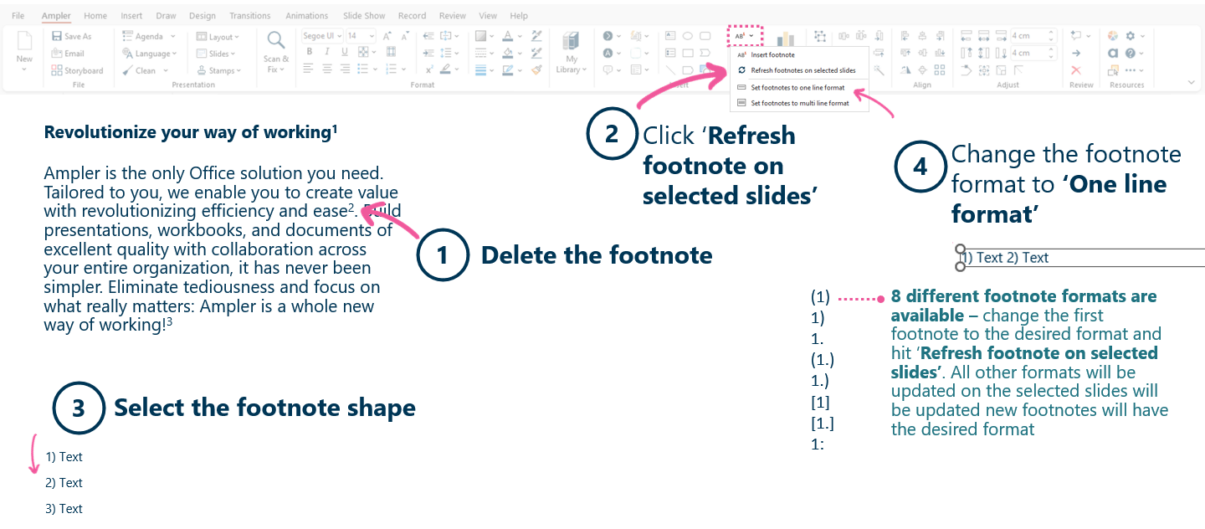
Delete or reorder, then Refresh footnote on selected slides to renumber and reformat.
- Delete a footnote.
- Click Refresh footnote on selected slides — the remaining references renumber.
- Select the footnote shape.
- Change the footnote format to One line format.
Eight reference formats are available — (1), 1), 1., (1.), 1.), [1], [1.], 1:. Set the first footnote to the format you want and click Refresh footnote on selected slides; the rest follow.
Keyboard shortcut
Footnote has no default shortcut. To assign one, open the Settings dropdown on the Ampler ribbon, choose Shortcuts, click Set shortcut on the Footnote function, and press your key combination.
Why use Ampler footnotes
The manual alternative — a hand-typed superscript plus a loose text box at the slide foot — breaks the moment a reference is added, removed, or reordered: every later number has to be corrected by hand. Ampler treats footnotes as managed objects, so the numbering stays internally consistent and the note text lives in a defined placeholder rather than a free-floating box. Typical uses: attributing a data point, recording the assumption behind a model output, or defining a term without cluttering the body.
How consultants use it
In management consulting, sourcing is not optional: senior reviewers are trained to challenge any number without a visible source, and a single unsourced figure undermines the credibility of the whole exhibit. Three conventions govern how footnotes are used:
- Reference everything: Every data point and non-obvious claim carries a footnote — Source: for the provenance of data, Note: for methodology, assumptions, or definitions.
- Keep it terse and consistent: A small reference line along the bottom of the slide — a citation, not a sentence — formatted identically across the deck so the document reads as one.
- Make the analysis defensible: Footnotes back the numbers behind a chart and flag the assumptions a model rests on, so the work stands up in senior review.
Because firms standardise the reference format, setting it once and propagating it across selected slides in a single click is what keeps a 40- or 60-slide deck consistent under deadline.
Tips & best practices
- Standardise on one reference format, then use Refresh footnote on selected slides to apply it deck-wide.
- Refresh after any major reordering so the numbering resyncs.
- Use the one-line format when footer space is tight or the slide carries a single source.
- Keep the note itself short — a source or a caveat, not a paragraph.
Frequently asked questions
How do you add footnotes in PowerPoint?
PowerPoint has no built-in footnote feature. With the Ampler add-in, place the cursor where the reference should appear, click Footnote on the Ampler ribbon, and type the note — Ampler numbers it and adds a footnote area to the slide automatically.
How do you keep footnote numbers correct after editing a slide?
Ampler auto-numbers footnotes as you add them. After you delete or reorder any, click Refresh footnote on selected slides and the whole sequence renumbers so it stays correct.
How do consultants add source citations to slides?
Consultants footnote every data point and key claim with a concise, consistently formatted source line at the bottom of the slide. Ampler footnotes make this repeatable: one click to cite, and one Refresh to apply a firm-standard reference format across the deck.
Can you change the footnote number format in PowerPoint?
Yes. Ampler offers eight reference formats — (1), 1), 1., (1.), 1.), [1], [1.] and 1: — plus a one-line format. Set the first footnote to the format you want and click Refresh footnote on selected slides to apply it.
Is there a keyboard shortcut for footnotes in Ampler?
There is no default shortcut, but you can assign one in Settings ▸ Shortcuts by clicking Set shortcut on the Footnote function and pressing your preferred keys.
Availability
Included in Ampler for PowerPoint and the Ampler Suite, on Windows desktop PowerPoint.