
Group by row and Group by column turn a grid of shapes into one group per row, or one group per column, in a single click. Align top and group lines up a row of shapes and groups it in the same step.
Quick answer: Select the shapes, click the arrow next to Group in the Arrange group of the Ampler ribbon, and choose Group by row, Group by column or Align top and group.
How to use it
Group a grid of shapes by row or by column
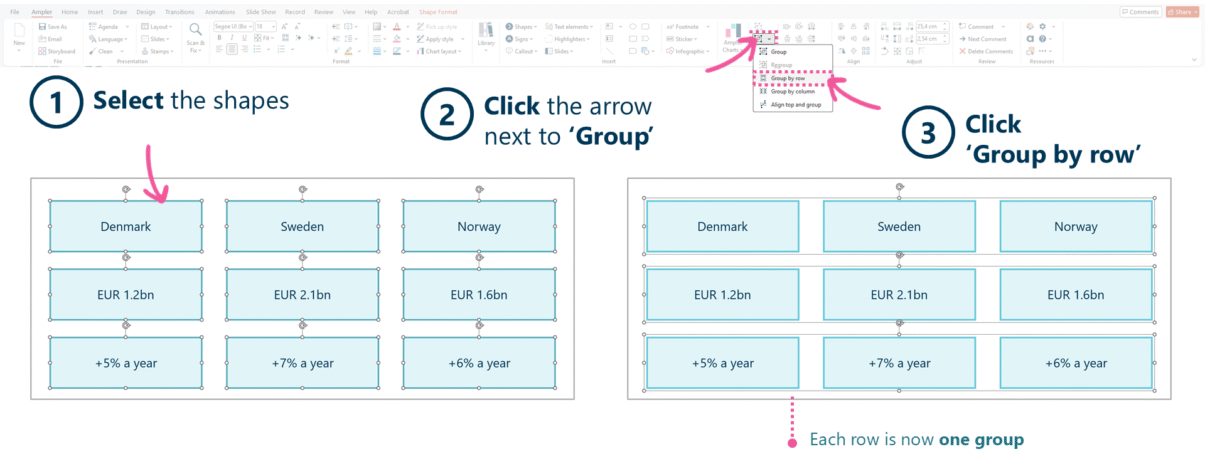
Group by row makes one group for each row of shapes.
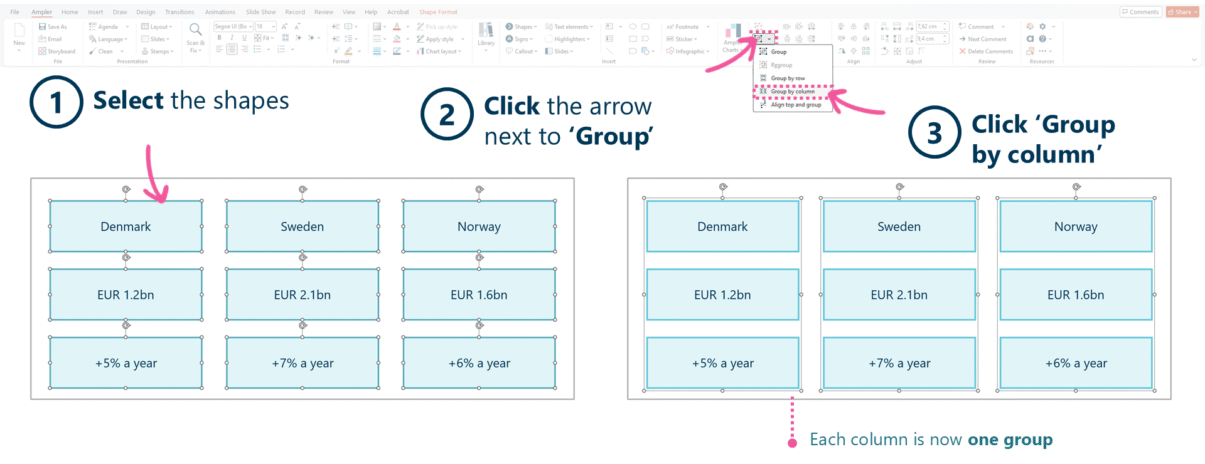
Group by column makes one group for each column of shapes.
- Select the shapes, for example by dragging a selection box around the grid.
- Click the arrow next to Group in the Arrange group on the Ampler ribbon.
- Click Group by row to make one group for each row, or Group by column to make one group for each column.
A shape that is alone in its row (or column) is left ungrouped. Shapes that sit slightly out of line are still placed in the right row or column.
Align the tops of shapes and group them
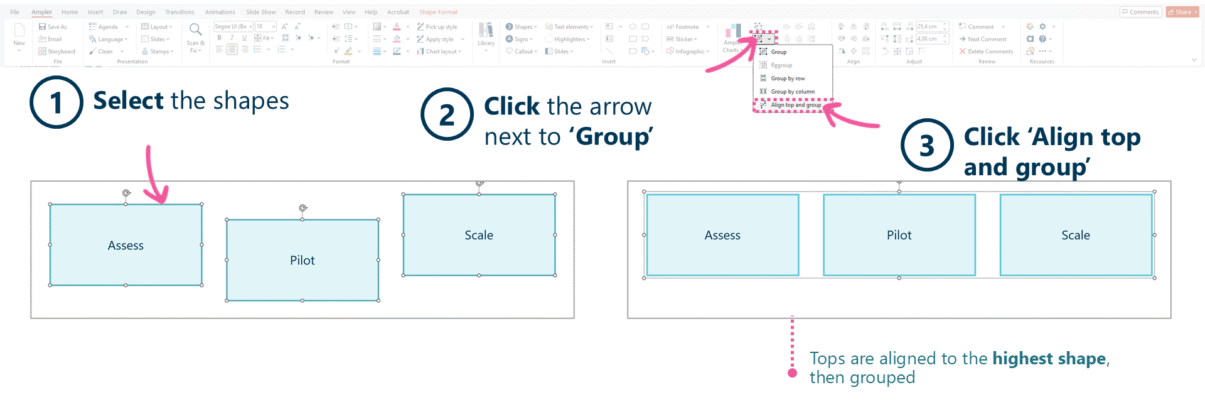
Align top and group lines up the tops of the selected shapes, then groups them.
- Select the shapes in the row.
- Click the arrow next to Group in the Arrange group.
- Click Align top and group.
The shapes are moved so their tops line up with the top of the highest shape, and are then grouped.
Regroup shapes you have ungrouped
- Select one of the shapes that used to be in the group.
- Click the arrow next to Group in the Arrange group.
- Click Regroup.
Regroup is only available when a shape from a former group is selected.
Keyboard shortcut
Group by row, Group by column, Align top and group and Regroup have no default shortcuts. To add one, open the Settings dropdown on the Ampler ribbon, choose Shortcuts and assign a key combination to the function. PowerPoint’s own Group and Ungroup remain on Ctrl+G and Ctrl+Shift+G.
Why use it
Slides such as option comparisons, assessments and workplans are often built as a grid of shapes. To move or reorder a row, every shape in it has to move together, and grouping row by row by hand is slow and easy to get wrong. Group by row and Group by column do the whole grid in one step, so whole rows or columns can then be swapped, stacked or distributed.
How consultants use it
Consulting slides are built on a strict grid, and much of the content is a matrix of rows and columns: options against criteria, workstreams against phases, initiatives against owners. Three habits follow:
- Matrices built from shapes: Option comparisons, assessment grids and workplans are often laid out as rows of aligned boxes rather than PowerPoint tables, because shapes are easier to format, colour and annotate.
- Rows that move as units: When the storyline changes, options and workstreams are reordered. Grouping each row keeps its label, content and assessment together, so a row moves without breaking the alignment.
- Alignment before grouping: Shapes are lined up and evenly spaced before they are grouped, so the grid stays clean when rows are moved. Align top and group does both in one step.
Group by row and Group by column turn a finished grid into movable rows or columns, ready for the late reordering that most decks go through.
Tips & best practices
- Group by row before you reorder rows with Swap places or Stack, so each row moves as one unit.
- Line up and space the shapes first (see Align shapes in a grid and Distribute); grouping keeps whatever layout the shapes have.
- To select all the shapes of one kind in a grid, use Magic Select first.
- Ungroup with Ctrl+Shift+G when you need to edit a single shape, then use Regroup to restore the group.
Availability
Included in Ampler for PowerPoint and the Ampler Suite, on Windows desktop PowerPoint.
Frequently asked questions
How do you group shapes by row in PowerPoint?
With Ampler, select the shapes, click the arrow next to Group in the Arrange group of the Ampler ribbon and choose Group by row. Each row of shapes becomes its own group.
What is the difference between Group by row and Group by column?
Group by row makes one group for each horizontal row of shapes; Group by column makes one group for each vertical column. Choose the one that matches how you want to move the content: rows for reordering options or workstreams, columns for reordering phases or criteria.
Can PowerPoint group shapes by row without an add-in?
PowerPoint’s own Group command makes a single group of everything you select, so grouping a grid row by row means selecting and grouping each row separately. Ampler’s Group by row does every row in one click.
Why is one of my shapes not grouped?
A shape that is alone in its row or column has nothing to be grouped with, so it is left as it is.
How do you regroup shapes after ungrouping them?
Select one of the shapes that used to be in the group, click the arrow next to Group in the Arrange group of the Ampler ribbon and choose Regroup.