
The Ampler Admin Portal (my.ampler.io) is your central hub for managing your organization’s Ampler environment. It provides administrators with full visibility and control across licensing, users, billing, and deployment—enabling efficient scaling and governance of Ampler within your organization.
From the portal, you can:
- Manage licenses and seats to ensure optimal allocation and utilization
- Control user access and team structures to align with your organization
- Handle billing and subscription details for transparency and cost management
- Download and deploy Ampler across your teams
- Maintain account and communication settings for administrators
Designed for enterprise use, the portal supports self-service administration, reduces dependency on support, and ensures that Ampler can be deployed and managed efficiently across teams and regions.
Admin Portal Navigation Overview
At the top of the portal, you will find the following sections:
Pricing
Review available plans and subscription options and evaluate upgrades or changes to your current setup
Licenses
View all active licenses and access detailed license management (seats, users, teams, admins)
Invoices
Access billing history and invoices and download documentation for procurement or finance teams
Marketing Preferences
Manage communication settings and control which updates and product information you receive
Download
Access the latest version of Ampler, find MSI downloads for IT deployments / company-wide rollouts, and installation instructions on Ampler for Mac and Office Online
My Account
Manage your personal admin profile and update login details and account settings
Accessing License Management
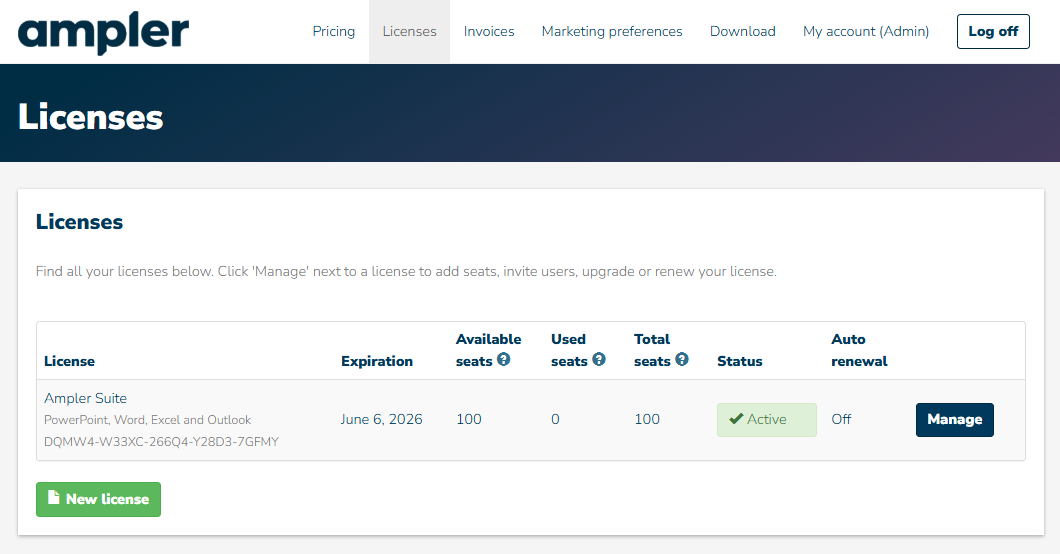
To manage your license navigate to the Licenses tab and then click Manage on the relevant license. This opens your central license management dashboard.
Overview of Available Actions
Within the Manage License view, you can perform the following administrative tasks:
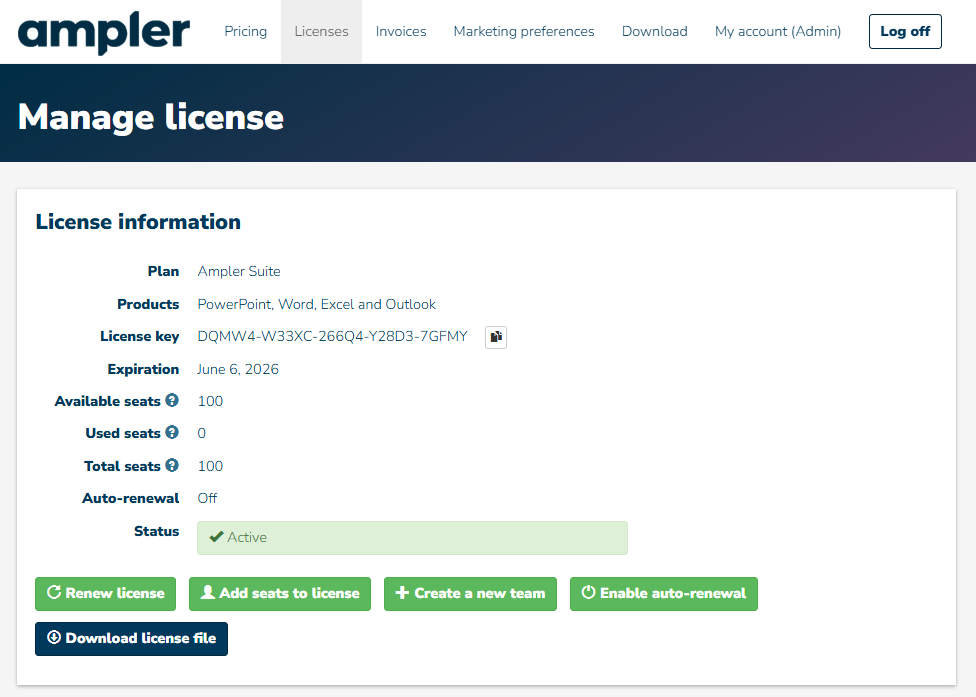
1. License Information
Get a complete overview of your subscription:
- License key
- Current plan and seat allocation
- Renewal options
- Option to add additional seats
2. License Administrators
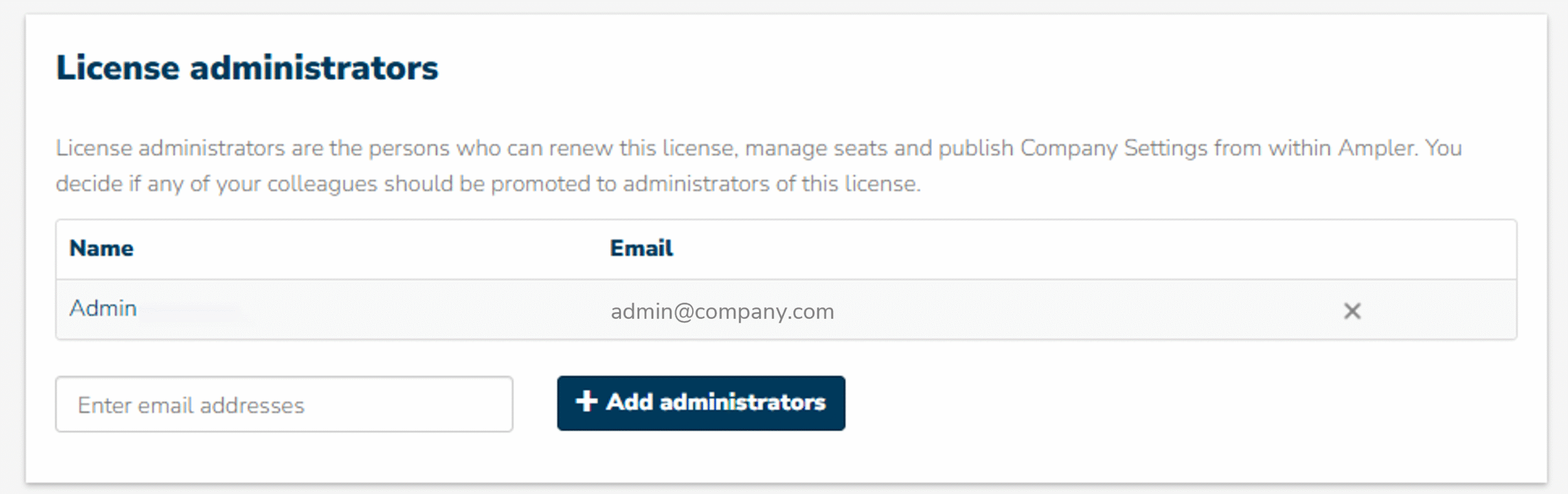
Control who has administrative access:
- View all current administrators
- Add new administrators
- Remove existing administrators
We recommend to maintain at least 2 admins to ensure continuity and governance.
3. Manage Teams
Organize users into structured groups:
- Create and manage teams
- Assign different subscription types (e.g., Ampler Professional for PowerPoint, Ampler Suite)
- Align licenses with functional roles or departments
Teams are primarily relevant if your organization uses multiple Ampler products or subscription types.
Once you create a team, you can designate it as the default team. Any new users invited to your license will automatically be assigned to this default team.
If you need to assign users to a different (non-default) team, you can do so by adding their email address (UPN) directly to that specific team.
4. Manage Used Seats
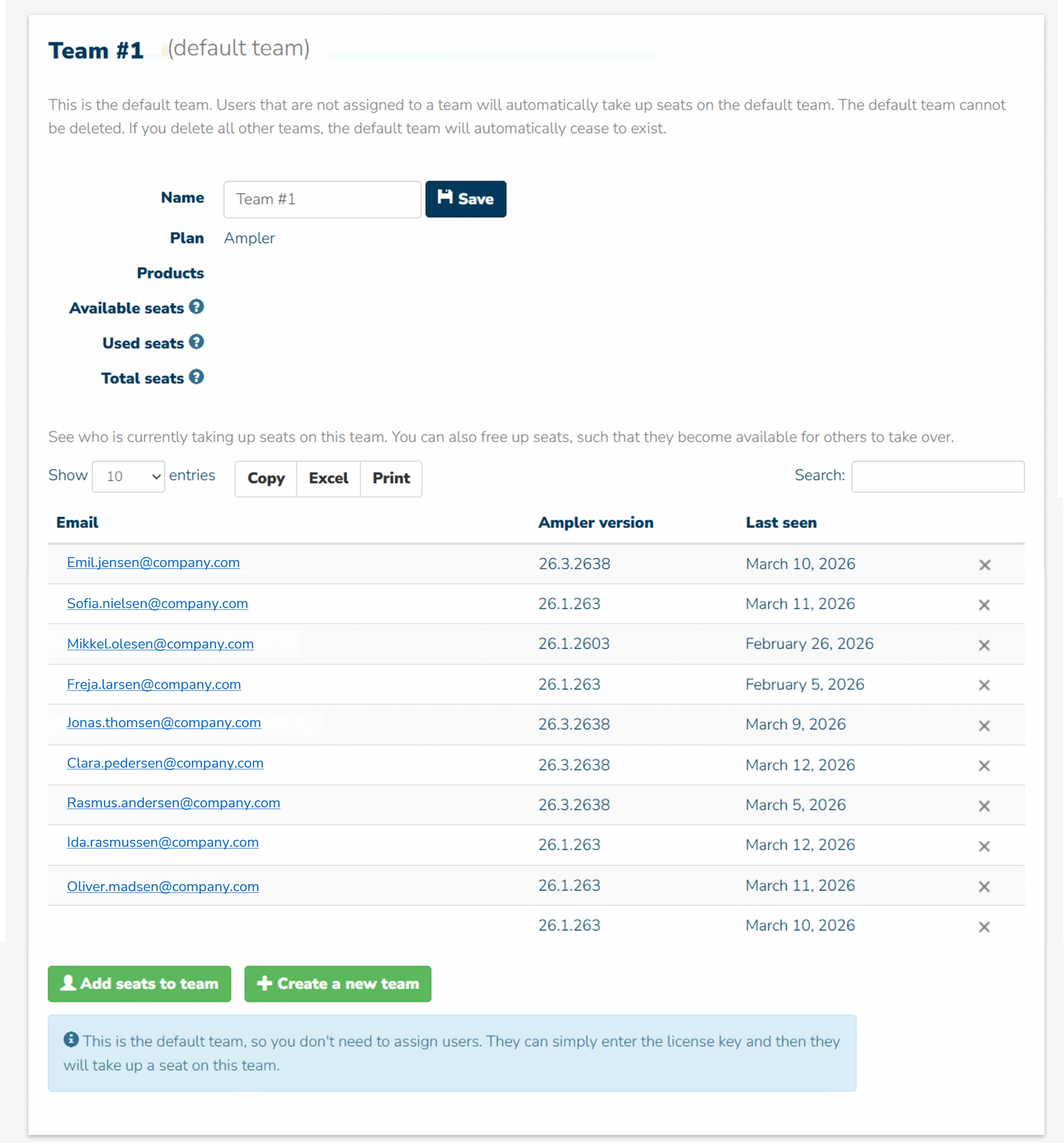
If you are using teams, you can manage users directly within each team.
If no teams are set up, all users can be managed centrally via the Manage Used Seats section. Her you can monitor and optimize license utilization:
- View all users currently occupying seats
- See the current version of Ampler individual user is on
- Identify inactive users by seeing the last date that the users was seen
- Free up seats for reassignment
You can remove a user from the license by selecting the “x” next to their name. This will free up the seat, making it available for another user.
Please note that if the removed user still has Ampler installed, they may automatically occupy a vacant seat again. To prevent unintended re-assignment, it is recommended to uninstall Ampler from the user’s device when removing their access.
Changing Devices
If a user moves from one device to another, it may be necessary to remove them from their current seat. This frees up the license and allows the user to activate Ampler on their new device.
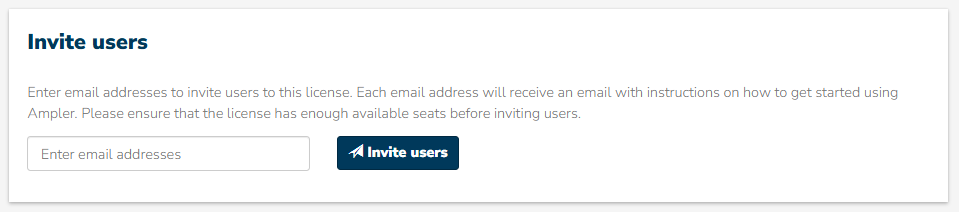
5. Invite Users
Onboard new users to your license:
- Send email invitations directly from the platform to new users. The users receive step-by-step setup instructions
Note that this is not relevant when Ampler is deployed centrally.
If you need further assistance, contact Ampler Support.