Best practices for the Quick Access Toolbar in Microsoft Excel, PowerPoint and Word
Back when I didn’t have Ampler for Excel, PowerPoint and Word, I used to be a huge advocate for using the Quick Access Toolbar, because you can customize the Quick Access Toolbar to your preference.
With a background in management consulting, I have worked intensively in Microsoft Office. With years of spending upwards of 50+ hours a week in Office, any tweaks to make life easier are more than welcome. The Quick Access Toolbar is one such tweak, which lets you quickly access commonly used functions that may otherwise be tedious to find and use.
What is Quick Access Toolbar and how can you use it?
The Quick Access Toolbar is a command line that appears either above or below the main ribbon tabs in Excel, PowerPoint and Word. The Quick Access Toolbar grants direct (quick) access to a set of desired commands in a toolbar that is always visible no matter which ribbon tab is selected.
There are 4 key benefits to using the Quick Access Toolbar:
Convenient access to most used commands: Using the Quick Access Toolbar for your commonly used commands saves a lot of time otherwise wasted swapping between ribbon tabs or navigating drop-down menus.
Add shortcuts to commands: The Quick Access Toolbar commands automatically have the shortcuts ALT+1, ALT+2,.., ALT+9 assigned to the first 9 commands in the toolbar.
Show hidden (or hard to find) commands in the Quick Access Toolbar: Some features are placed in quite inaccessibly in each of the programs, e.g. within subgroups of ribbon tabs or in submenus of windows or panels.
Show macros or a custom command: A huge time saver is having custom commands that automate your workflow, and the Quick Access Toolbar enables you to add a custom command such as a macro or add-in function.
How do you customize the Quick Access Toolbar?
Here is a walkthrough on how to add commands to the Quick Access Toolbar:
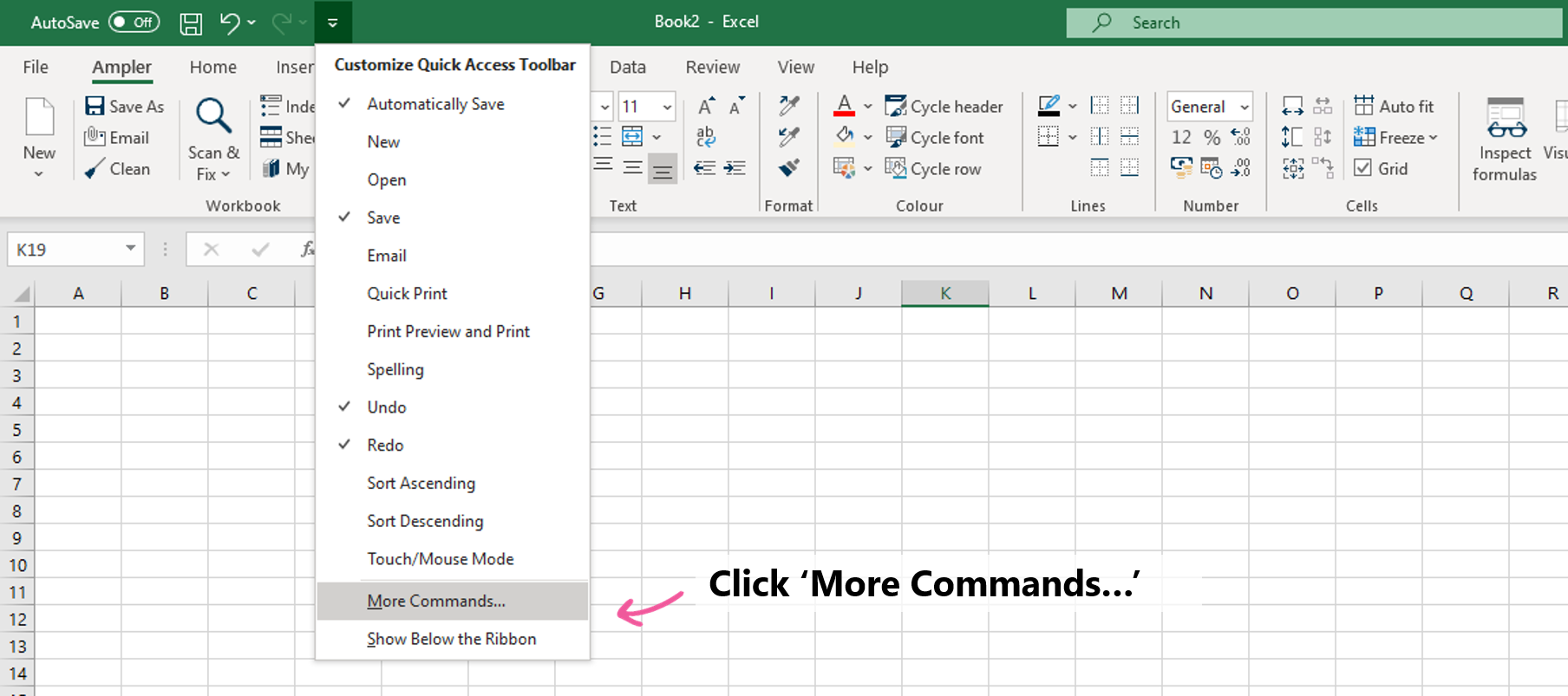
Open the interface to customize the Quick Access Toolbar:
Locate the Quick Access Toolbar above the main ribbon tab
Click the drop-down menu farthest to the right of the Quick Access Toolbar
Select ‘More Commands…’ to spawn the ‘Customize Quick Access Toolbar’ interface
Add commands to the Quick Access Toolbar:
Select the filter that contains the command, e.g. ‘Home Tab’ from the ‘Choose commands from’ drop-down menu
Scroll through the list on the left-hand-side which lets you choose commands and select the command to add to the Quick Access Toolbar
Click ‘Add’ to add commands to your Quick Access Toolbar (right-hand-side)
Use the ‘Up’ and ‘Down’ arrows to change the order of command functions in the Quick Access Toolbar
Click OK to save the Quick Access Toolbar
Remove a command from the Quick Access Toolbar:
Select the command you wish to remove in the panel on the right
Click on ‘Remove from Quick Access Toolbar’ or double click to remove a command
Click OK to save the Quick Access Toolbar
Tip: You can right-click on any command button within Excel, PowerPoint, or Word and click ‘Add to Quick Access Toolbar’, and right-click on a command in your Quick Access Toolbar and select ‘Remove from Quick Access Toolbar’.
To access the commands you have added to the toolbar, click the function in the command line that appears above or below the main ribbon tabs.
If your friend or colleague has a great customized Quick Access Toolbar, you can use the ‘Import/Export’ button to create a .exportedUI file that you can use to share the Quick Access Toolbar setup.
Popular commands for the Quick Access Toolbar
Below are some of the commands that management consultants commonly use to customize Quick Access Toolbar to maximize convenience. This will give you a great starting point when you choose the first command to add to your own Quick Access Toolbar.
Also, below each list of commands is a download link to import the customized Quick Access Toolbar.
Popular commands to customize Quick Access Toolbar Excel
You will probably benefit from adding some of the below commands when you customize the Quick Access Toolbar in Excel.
Popular commands to customize Quick Access Toolbar PowerPoint
Here are some great commands to add when you customize the Quick Access Toolbar in PowerPoint.
Save
Email
Paste Special…
Align Objects Left
Align Objects Right
Align Objects Top
Align Objects Bottom
Align Objects Center
Align Objects Middle
Group
Ungroup
Bring to Front
Bring to Back
Distribute Vertically
Distribute Horizontally
Rotate Objects
Eyedropper Fill
Format Painter
Comments
Crop Picture
Set Transparent Color
Grid Settings…
Download the PowerPoint Quick Access Toolbar here.
Popular commands to customize Quick Access Toolbar Word
These functions will improve your workflow in Word. Simply right click on any command button and click ‘Add to Quick Access Toolbar’ to add commands to the Quick Access Toolbar.
Save
Email
Paste Special…
Track Changes
Show Markup
Accept
Reject
Comments
Add Table
Insert Columns to the Right
Insert Rows Below
Insert Symbol from Dialog
Paragraph Settings
Insert Page Break
Footnote
Insert Cross-reference
Update Table of Contents
Language
Word Count
Show All (ParagraphMarks)
Crop Picture
Set Transparent Color
Download the Microsoft Word Quick Access Toolbar here.
Ampler – the ultimate Quick Access Toolbar
I am a huge fan of the Quick Access Toolbar, but as mentioned previously, I actually don’t use the native toolbar that comes with Excel, PowerPoint or Word anymore. Instead I use the add-in Ampler.
Ampler is in essence like a supercharged Quick Access Toolbar that amplifies each of the benefits:
Convenient access to 99% of the commands you need in a full custom ribbon tab placed as the default ribbon tab before Home. Like the Quick Access Toolbar it is fully customizable (easily done with search and drag and drop to add commands to the toolbar)
Set custom shortcuts to ALL the commands you want – It really is incredible to have e.g. ‘CTRL+,’ to increase decimal places in Excel or ‘CTRL+Arrows’ to align in PowerPoint
Lots and lots of custom functions that really makes life much easier. The program has been developed based on input from with thousands of management consultants and investment professionals!
This website uses cookies in order to improve the user experience. When you continue to use this site, you accept the use of cookies. Read more about our cookie policy here.